Because for months I didn’t really know what was running on my machine
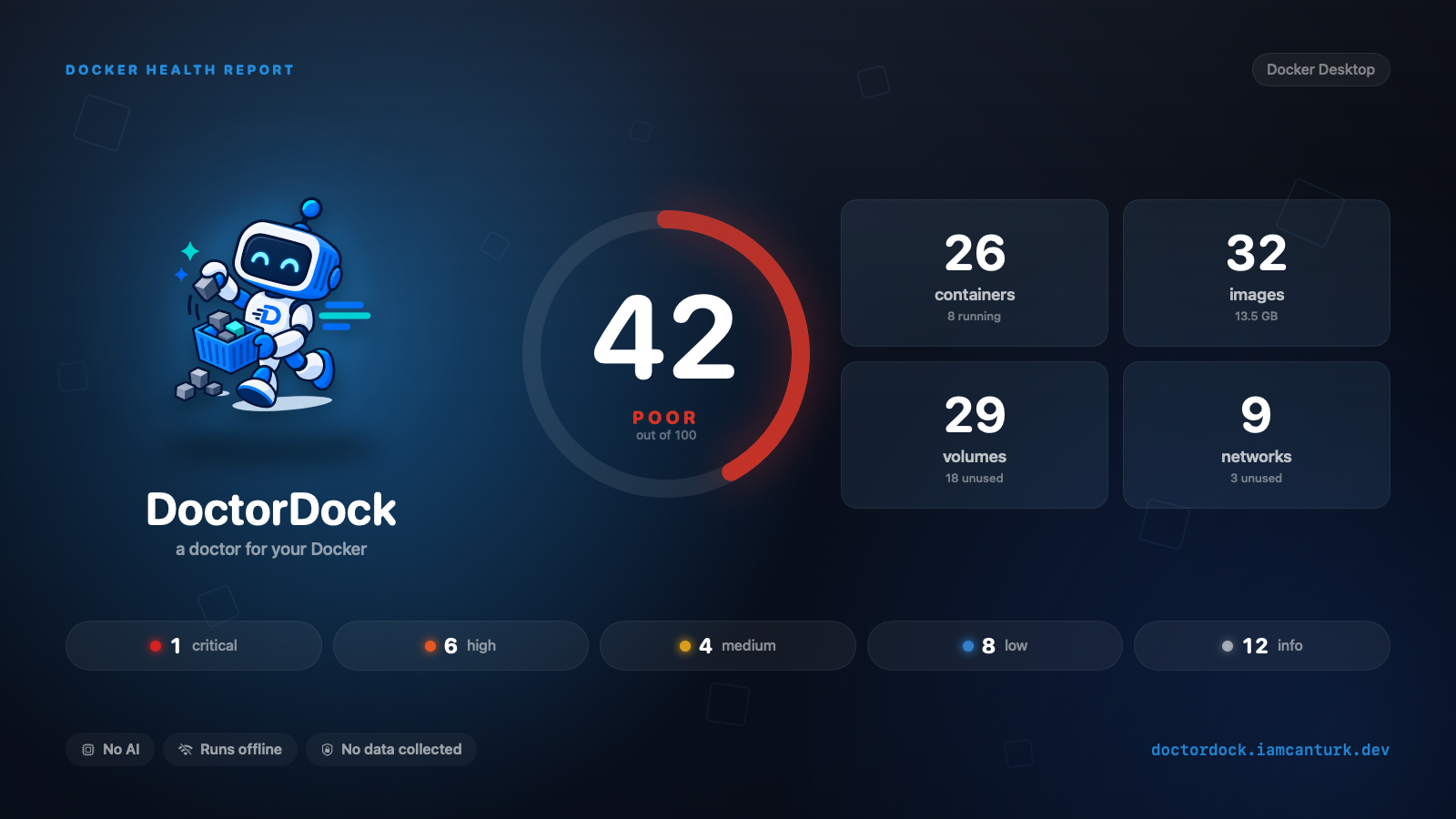
One evening, at the end of a long day, I typed docker ps and just stared at the output for a while. Twenty-six containers. I remembered what some of them were for; the rest were things I’d spun up months ago with a quick “let me just try this” and then forgotten. Then I typed docker images: thirteen gigabytes. Layers nobody pulls anymore, images that had long since stopped mattering.
That was the moment I admitted something uncomfortable: I used Docker every day, but I didn’t actually know what was running inside it.
Docker is a strange tool that way. It makes running something extraordinarily easy, and noticing what you’re running just as hard. Six months into a project, the average developer’s machine has quietly accumulated the same things: a container with the Docker socket mounted into it, a couple of databases published to 0.0.0.0, a dozen services running as root, and gigabytes of images nothing references. None of it sets off an alarm — not until something breaks, or someone decides to scan you.
The existing tools don’t fill this gap
Don’t get me wrong, there are good tools. Trivy and Grype find CVEs in your images perfectly well. But they need a vulnerability database, and therefore a network, and what they look at is the packages inside the image. That wasn’t my problem. My problem was the configuration layer: how I was running the container. docker system df tells you disk usage but has no opinion about it; it won’t say “nothing touches this volume anymore.”
What I wanted was a tool that answered one question: what is wrong with this Docker environment right now, and what should I do about it? I couldn’t find it, so I wrote it.
DoctorDock
DoctorDock is a small command-line tool that scans your local Docker environment — with a native macOS menubar app alongside it. It finds the security problems, the misconfigurations, and the reclaimable disk, and leaves you with a health score out of 100. I wrote it in Go; single binary, no account, MIT license.
To be concrete about speed: on my machine, a full scan of roughly 26 containers, 29 images, 29 volumes, and 12 networks takes about 550 ms. That’s less time than it takes to read the output of docker ps.
Three decisions I made
I decided three things up front while writing this. All three might look like missing features. I’d argue it’s the opposite.
No AI
I could have made this an “AI-powered security product.” I didn’t. Every finding is deterministic Go you can read; the same environment always produces the same output. If you wonder why a rule flagged something, you can go read the source. I don’t want a security tool telling me “this might be insecure” — either it is, or it isn’t.
Fully offline
Zero network calls. No telemetry, no account, no update check. DoctorDock opens exactly one local socket — Docker’s — and nothing else. It runs the same on an air-gapped machine and in a locked-down CI runner. What you scan stays with you.
Secrets stay put
I read container environment variables as key names only; their values never enter memory in a form that could reach a report. You’ll see that a key called DATABASE_PASSWORD exists — never its value. That’s what makes it safe to point at production, which for a security tool should be the default, not a selling point.
What it looks like
There’s nothing to do but install it and scan:
brew install iamcanturk/tap/doctordock
doctordock scan
The output gives your environment a score and lists the findings worst-first:
HEALTH SCORE  37/100  poor

  1 CRITICAL · 17 HIGH · 6 MEDIUM · 22 LOW

  DD005  CRITICAL  Docker socket mounted into a container
  DD001  HIGH      Container runs as root
  DD006  MEDIUM    Database port published on 0.0.0.0
If you see 37/100, don’t panic; most developer machines start somewhere around there on the first scan. What matters is that the list is finally visible. And every rule explains itself:
doctordock explain DD005That prints what the rule looks for, why it matters, a worked attack scenario, a copy-pasteable fix, and an honest note on when it’s fine to ignore. It doesn’t stop at “there’s a problem here” — it teaches you how to close it.

The part I worried about most: cleanup
Honestly, cleanup is the part I was most nervous about while writing this — because one wrong command can wipe out someone’s month of data. So DoctorDock deletes nothing by default:
doctordock cleanup            # dry run: only shows what it would remove
doctordock cleanup --apply    # actually removes it
And no flag except --volumes can select a volume — not even --all. You can re-pull an image and re-create a network; but when the data in a volume is gone, it’s gone. So volumes only ever enter the picture when you ask for them explicitly, on their own. Nothing is deleted by accident.
Closing
DoctorDock isn’t a big product; it’s a small, honest tool. It puts the things your Docker environment quietly accumulated over months in front of you in under a second, without leaking any of it. Like a doctor: it looks, it diagnoses, it tells you what to do — and it leaves the decision to you.
If you’re curious, run a scan and see what your machine actually scores. It’ll probably come out lower than you think — but for the first time, you’ll know exactly what to do about it.
You can find a summary, screenshots, and what it does at a glance on the project page.
- Code: github.com/iamcanturk/DoctorDock
- Download and details: doctordock.iamcanturk.dev